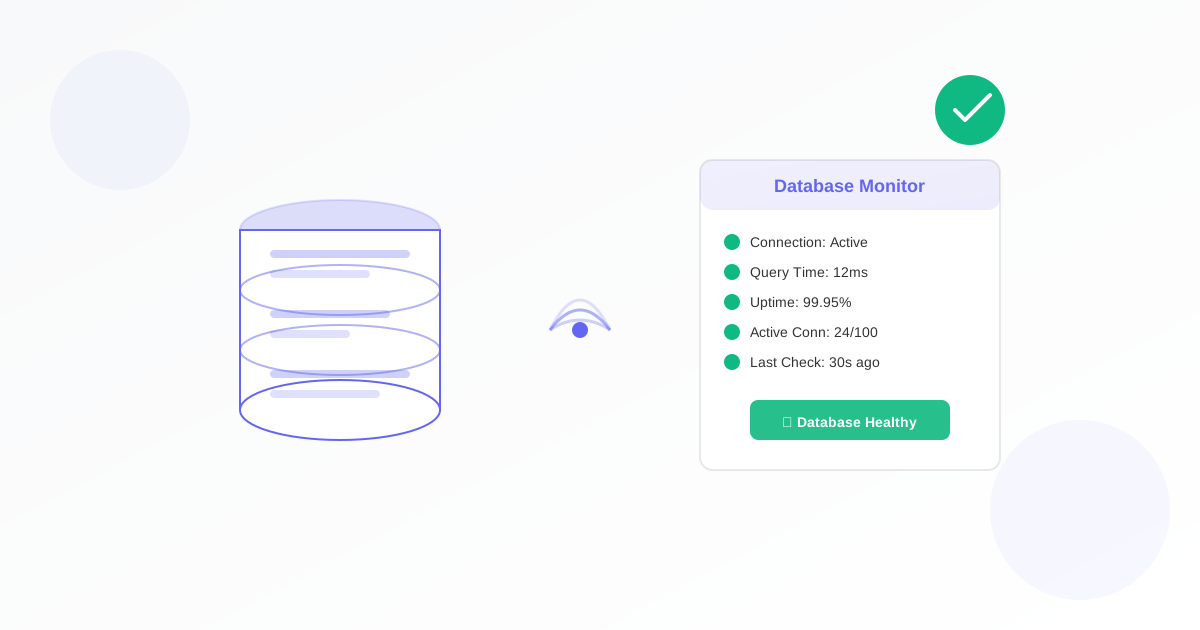
A database monitor checks that your database is reachable and, optionally, that it is performing well (e.g. not too many slow queries or threads). For business owners, that means you know when the database is down or degrading so you can fix it before the app or site fails. This guide walks you through why it matters and how to set one up.
Why Business Owners Should Use a Database Monitor
Your app or site often depends on a database. When the database is down, slow, or overloaded, users see errors or timeouts. Problems can come from the network, the server, or the database itself. A database monitor runs from outside (via Exomonitor) and alerts you when connection or optional performance checks fail.
- Avoid outages: Know as soon as the database is unreachable so you can fix it quickly.
- Catch slowdowns: Optionally monitor slow queries and thread usage so you see problems before they become full outages.
- No code on the server: Exomonitor connects to your database from its side; you only provide connection details (we recommend a read-only user).
What You Need Before You Start
You need database connection details: host, port, database name, and a username and password. Exomonitor will connect to the database to run checks. We recommend creating a read-only user with limited permissions so the monitor cannot change data. You can use an existing database or add a new one in the form.
How to Set Up Your Database Monitor
- Open the database monitor form.
- Name your monitor (e.g. “Main app DB” or “Analytics database”).
- Database connection: Select an existing saved database or add a new one. Enter host, port, database name, username, and password. Use a read-only user if possible.
- Monitor checks: Connection check is always on. Optionally enable slow query monitoring and thread usage monitoring and set the thresholds.
- Set how often to check and who gets alerts (watchers), then save. Your database monitor is now active.
Exomonitor will connect to your database at the scheduled times and run the checks you enabled.
When You Will Get Alerts
Exomonitor sends an email when:
- The database cannot be reached (e.g. connection timeout, authentication failure, or server down).
- Optional: the number of slow queries exceeds your threshold.
- Optional: the number of threads (or connections) goes above or below your limits.
That way you know as soon as connectivity or performance is a problem.
What the Monitor Actually Checks
The database monitor:
- Connection: Checks that the database accepts connections with your credentials.
- Optional slow queries: Counts slow queries and alerts if the count is above your limit.
- Optional thread usage: Checks thread or connection usage and alerts if outside your range.
So you see when the database is down or when it starts to struggle.
Next Steps
Set up your first database monitor: go to Create database monitor, add or select your database, enable the checks you want, set the check frequency and watchers, and save. You can add more monitors for other databases.
Combine a database monitor with a web monitor so you know when both your site and the database behind it are healthy.
Ready to start monitoring?
Get instant alerts when issues occur, so you can quickly troubleshoot and fix problems.
Flexible monitoring:
- Select the frequency that works for your needs
- Stop or pause the monitor at any time
- Pricing updates automatically based on frequency
- Set up monitors before entering payment details