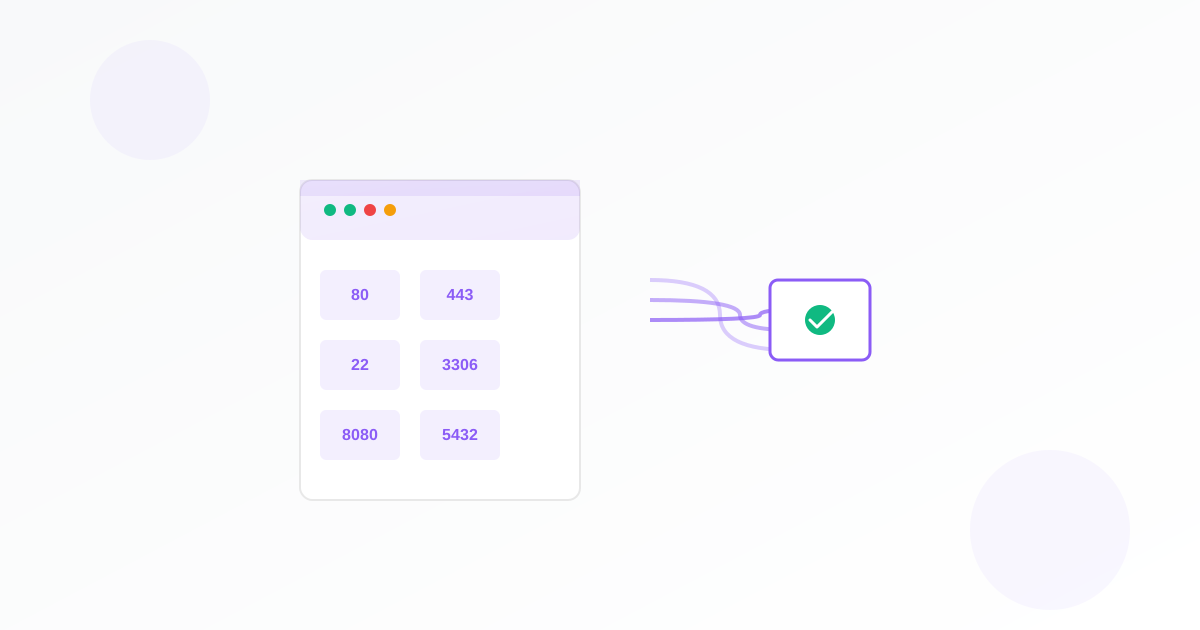
A port monitor checks whether specific ports on your server are open or closed as expected. For business owners, that means you know when a service stops accepting connections (e.g. web or SSH) or when an extra port opens that could be a security risk. This guide walks you through why it matters and how to set one up.
Why Business Owners Should Use a Port Monitor
Servers expose ports for services (e.g. 80 for HTTP, 443 for HTTPS, 22 for SSH). If a required port closes, the service is down. If a port that should be closed opens, something new (or unauthorised) may be listening. A port monitor gives you an external check so you spot both outages and unexpected changes.
- Avoid service outages: If a port that should be open (e.g. 443) closes, you get an alert so you can fix the service or firewall.
- Spot security issues: If a port that should be closed (e.g. 3389) opens, you can investigate and close it.
- Keep compliance: Some policies require that only certain ports are open; monitoring helps you stay in line.
What You Need Before You Start
You need the host to check: hostname or IP address of the server (e.g. example.com or 192.168.1.1). You also need to decide:
- Open ports: Ports that should be open (e.g. 80, 443, 22). You get an alert if any of these close.
- Closed ports: Ports that should be closed (e.g. 23, 3389). You get an alert if any of these open.
Enter port numbers separated by commas.
How to Set Up Your Port Monitor
- Open the port monitor form.
- Name your monitor (e.g. “Web server ports” or “Main server”).
- Enter the host (hostname or IP) to check.
- Enter open ports to check (e.g. 80, 443, 22). An alert is sent if any of these become closed.
- Enter closed ports to check (e.g. 23, 3389). An alert is sent if any of these become open.
- Set how often to check and who gets alerts (watchers), then save. Your port monitor is now active.
Everything runs from Exomonitor; you do not install anything on the server.
When You Will Get Alerts
Exomonitor sends an email when:
- A port you listed as “open” is closed (e.g. 443 no longer accepts connections).
- A port you listed as “closed” is open (e.g. 3389 is now accepting connections).
That way you know as soon as the port state changes.
What the Monitor Actually Checks
The port monitor:
- Connects to the host on each port you listed.
- For open ports: checks that a connection can be made. If not, it alerts.
- For closed ports: checks that a connection cannot be made. If a connection succeeds, it alerts.
So you see when required services go down or when unwanted ports appear.
Next Steps
Set up your first port monitor: go to Create port monitor, enter the host and port lists, set the check frequency and watchers, and save. You can add more monitors for other servers.
Combine a port monitor with a web monitor so you know both when the server is reachable on the right ports and when the site itself responds.
Ready to start monitoring?
Get instant alerts when issues occur, so you can quickly troubleshoot and fix problems.
Flexible monitoring:
- Select the frequency that works for your needs
- Stop or pause the monitor at any time
- Pricing updates automatically based on frequency
- Set up monitors before entering payment details