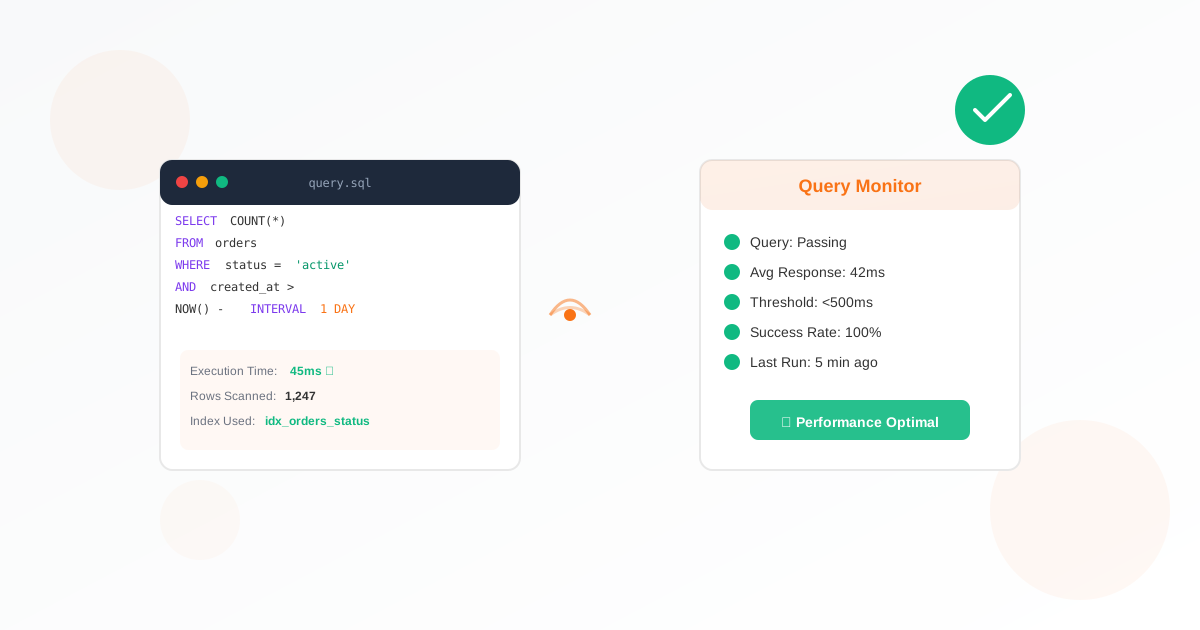
A SQL query report monitor runs a SELECT query on your database at a schedule and alerts you when the results meet conditions you define (e.g. a value above or below a number, or a row count outside a range). For business owners, that means you can watch things like order backlogs, error counts, or inventory and get an email when something needs attention. This guide walks you through why it matters and how to set one up.
Why Business Owners Should Use a SQL Report Monitor
You often care about numbers that live in the database: pending orders, failed jobs, low stock, or rows that need review. Manually checking is tedious and easy to forget. A SQL report monitor runs your query for you and alerts you only when the result crosses your thresholds, so you act on exceptions instead of polling dashboards.
- Automate exception reports: Get an email when a value or row count goes out of range.
- Flexible: You choose the query and the conditions (e.g. “alert when count > 100” or “when value < 5”).
- No extra app: Exomonitor runs the query and evaluates the result; you only define the query and thresholds.
What You Need Before You Start
You need database connection details (host, port, database name, username, password). The monitor will run a SELECT query on that database. Use a read-only user with access only to the tables and columns you need. You also need a SELECT query that returns the data you want to monitor (e.g. one row with one or more columns, or a count). You can add optional alert conditions: value thresholds (min/max for a column) and/or row count thresholds (min/max rows).
How to Set Up Your SQL Report Monitor
- Open the SQL query report monitor form.
- Name your monitor (e.g. “Pending orders” or “Error count”).
- Database: Select an existing saved database or add a new one with connection details. Use a read-only user.
- SQL query: Enter the SELECT query that returns the data to monitor (e.g. SELECT COUNT(*) AS total FROM orders WHERE status = 'pending'). You can test the query in the form.
- Alert conditions: Optionally set value thresholds (which column, min and/or max) and/or row count thresholds (min and/or max rows). You get an alert when the result meets these conditions.
- Set how often to run the query and who gets alerts (watchers), then save. Your SQL report monitor is now active.
Exomonitor will run the query at the scheduled times and send an email with the exception report when the result matches your conditions.
When You Will Get Alerts
Exomonitor sends an email when:
- The query runs and the result meets your value threshold (e.g. the chosen column is below the minimum or above the maximum).
- The query runs and the row count meets your row count threshold (e.g. fewer than min rows or more than max rows).
The email can include the query result so you see the current values.
What the Monitor Actually Checks
The SQL report monitor:
- Runs your SELECT query on the chosen database at each check.
- Evaluates the result against your optional value and row count conditions.
- Alerts when a condition is met and can include the result in the email.
So you get automated exception reporting based on your own query and rules.
Next Steps
Set up your first SQL report monitor: go to Create SQL query report monitor, add or select your database, enter your query and optional conditions, set the schedule and watchers, and save. You can add more monitors for other queries or databases.
Combine a SQL report monitor with a database monitor so you know both when the database is reachable and when your business or technical metrics go out of range.
Ready to start monitoring?
Get instant alerts when issues occur, so you can quickly troubleshoot and fix problems.
Flexible monitoring:
- Select the frequency that works for your needs
- Stop or pause the monitor at any time
- Pricing updates automatically based on frequency
- Set up monitors before entering payment details