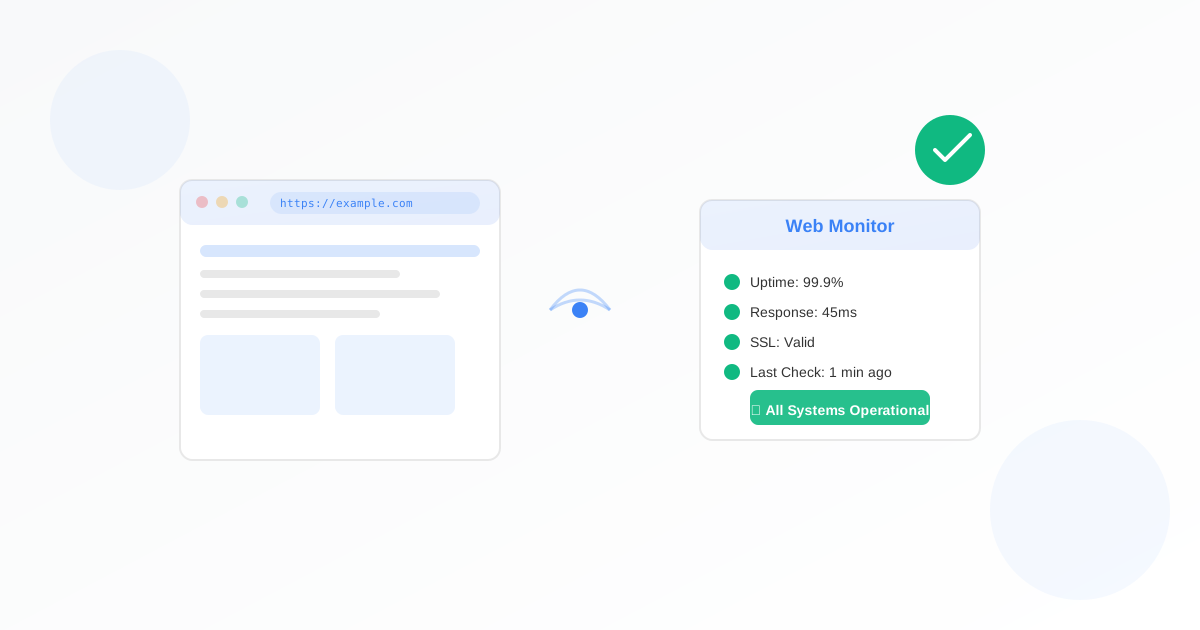
A web monitor checks that your website is up, returns the right status code, and responds in time. For business owners, that means you know right away if the site goes down or gets slow so you can fix it before customers notice. This guide walks you through why it matters and how to set one up.
Why Business Owners Should Use a Web Monitor
Your website is often the first place customers see you. When it is down or very slow, you lose trust and sales. Problems can happen at any time: server issues, broken deployments, or hosting outages. A web monitor gives you an early warning from outside the internet so you are not the last to know.
- Avoid lost sales: If the site is down, visitors see an error. A monitor alerts you so you can act quickly.
- Catch slowdowns: Response time checks tell you when the site is getting slow before it becomes a full outage.
- Verify the right page: You can require that a specific string (e.g. "Welcome" or "OK") appears on the page so you know the right content is loading.
What You Need Before You Start
You need the URL of the page to monitor, including the protocol (https:// or http://). For example:
- Your homepage: https://example.com
- A status page: https://www.mysite.com/status
- An API or health endpoint: https://api.example.com/health
Optionally you can decide: a string that must appear on the page, the expected HTTP status code (usually 200), and the maximum response time in milliseconds. Defaults work for most sites.
How to Set Up Your Web Monitor
- Open the web monitor form.
- Name your monitor so you can recognise it (e.g. "Main site" or "Shop homepage").
- Enter the URL to monitor (e.g. https://example.com). Include https:// or http://.
- Optionally enter a string to monitor. If you set one, an alert is sent when that string is not found in the page.
- Set the status code you expect (default 200). You get an alert if the server returns a different code.
- Set the maximum response time in milliseconds (default 30,000, i.e. 30 seconds). You get an alert if the response is slower.
- Choose how often to check and who gets alerts (watchers), then save. Your web monitor is now active.
Everything runs from Exomonitor; you do not install anything on your server.
When You Will Get Alerts
Exomonitor sends an email when:
- The URL does not respond or returns an error (e.g. connection refused, timeout).
- The HTTP status code is not the one you set (e.g. 500 instead of 200).
- The optional string is not found in the page.
- The response time is above your maximum (e.g. over 30 seconds).
That way you know as soon as something is wrong.
What the Monitor Actually Checks
The web monitor checks:
- Availability: The URL is reached and the server responds.
- HTTP status code: The response code matches what you configured (e.g. 200 OK).
- Optional string: If you set one, that text must appear in the response body.
- Response time: The total time is under your configured maximum.
If any of these fail, you get an alert with details so you can troubleshoot.
Next Steps
Set up your first web monitor in a few minutes: go to Create web monitor, enter your URL, adjust options if needed, add watchers, and save. You can add more monitors for other pages or APIs.
To protect both uptime and security, use a web monitor together with an SSL monitor so you know when the site is down, slow, or when the certificate is expiring.
Ready to start monitoring?
Get instant alerts when issues occur, so you can quickly troubleshoot and fix problems.
Flexible monitoring:
- Select the frequency that works for your needs
- Stop or pause the monitor at any time
- Pricing updates automatically based on frequency
- Set up monitors before entering payment details