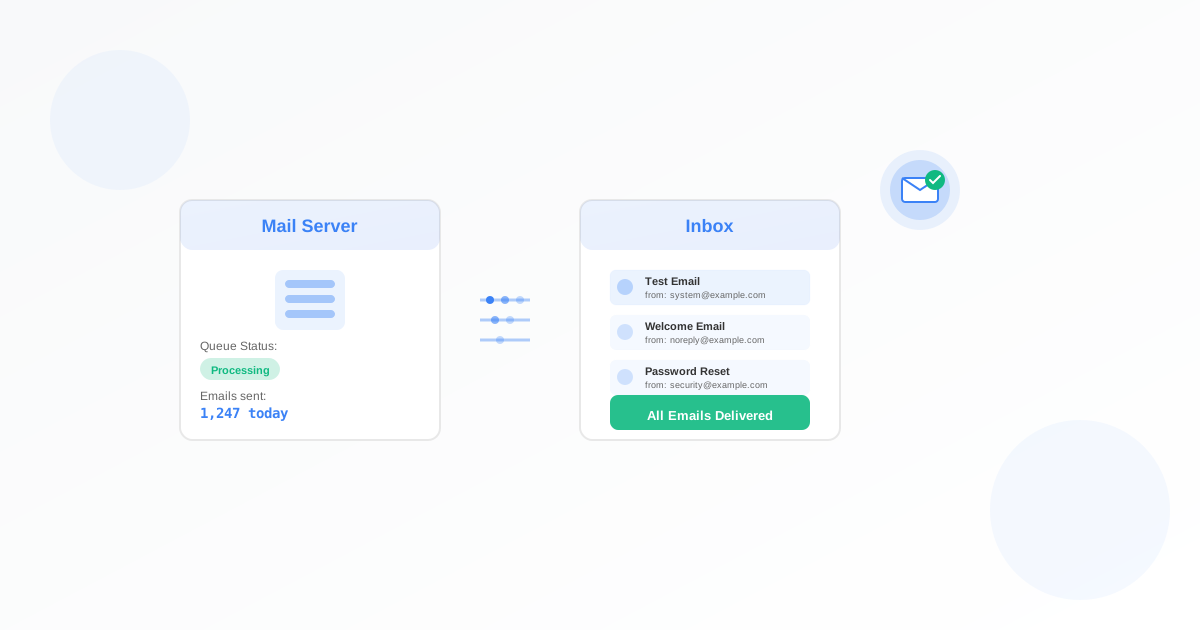
An email monitor gives you a unique address that Exomonitor watches. You send test emails to that address on a schedule (e.g. from your own server or app). If no email arrives within the expected interval, Exomonitor alerts you. For business owners, that means you know when inbound email is broken so you can fix it before customers notice. This guide walks you through why it matters and how to set one up.
Why Business Owners Should Use an Email Monitor
Email is critical for support, signups, and notifications. When inbound email fails, you may miss messages and not realise it. Failures can be at your server, your provider, or in between. An email monitor checks the full path: if a message does not reach Exomonitor’s inbox in time, you get an alert.
- Catch delivery failures: If your server or provider stops delivering mail, you find out quickly.
- End-to-end check: You test the whole path by sending real messages, not just a connection test.
- Simple setup: You get an address; you send mail to it on a schedule. No server install.
What You Need Before You Start
You need a way to send email to the monitor address on a schedule (e.g. a cron job, a script, or an app that sends a “heartbeat” email). Exomonitor will give you the address when you create the monitor. You do not need to install anything on your mail server.
How to Set Up Your Email Monitor
- Open the email monitor form.
- Name your monitor (e.g. “Inbound mail check” or “Support mailbox heartbeat”).
- Set how often you will send a test email (this becomes the check interval). Exomonitor will alert you if no email is received in that time.
- Add who gets alerts (watchers), then save. Your email monitor is now active.
- Exomonitor will show you the monitor email address. Send a test email to that address at least as often as your check interval (e.g. every 15 minutes if you check every 15 minutes). If no email arrives in time, you get an alert.
Everything runs from Exomonitor; you only need to send mail to the provided address.
When You Will Get Alerts
Exomonitor sends an email when:
- No message is received at the monitor address within the expected interval (e.g. you send every 15 minutes but nothing arrives in 20 minutes).
That way you know as soon as inbound delivery is failing.
What the Monitor Actually Checks
The email monitor:
- Watches the unique inbox for your monitor.
- Expects at least one message within each check interval (based on how often you said you would send).
- Alerts when no message is received in time.
So you get an end-to-end check of your inbound email path.
Next Steps
Set up your first email monitor: go to Create email monitor, configure the check interval and watchers, save, then start sending test emails to the address Exomonitor provides. Use a cron job or script so messages are sent on a regular schedule.
Combine an email monitor with a web monitor so you know when both your site and your inbound email are working.
Ready to start monitoring?
Get instant alerts when issues occur, so you can quickly troubleshoot and fix problems.
Flexible monitoring:
- Select the frequency that works for your needs
- Stop or pause the monitor at any time
- Pricing updates automatically based on frequency
- Set up monitors before entering payment details